
Cashier Guide
Complete guide for cashiers handling payment verification, receipt management, and financial transactions
This guide provides comprehensive instructions for cashiers responsible for financial transaction management, payment verification, and receipt processing in the Auction Pro system.
🚀 Getting Started
Cashier Dashboard Overview
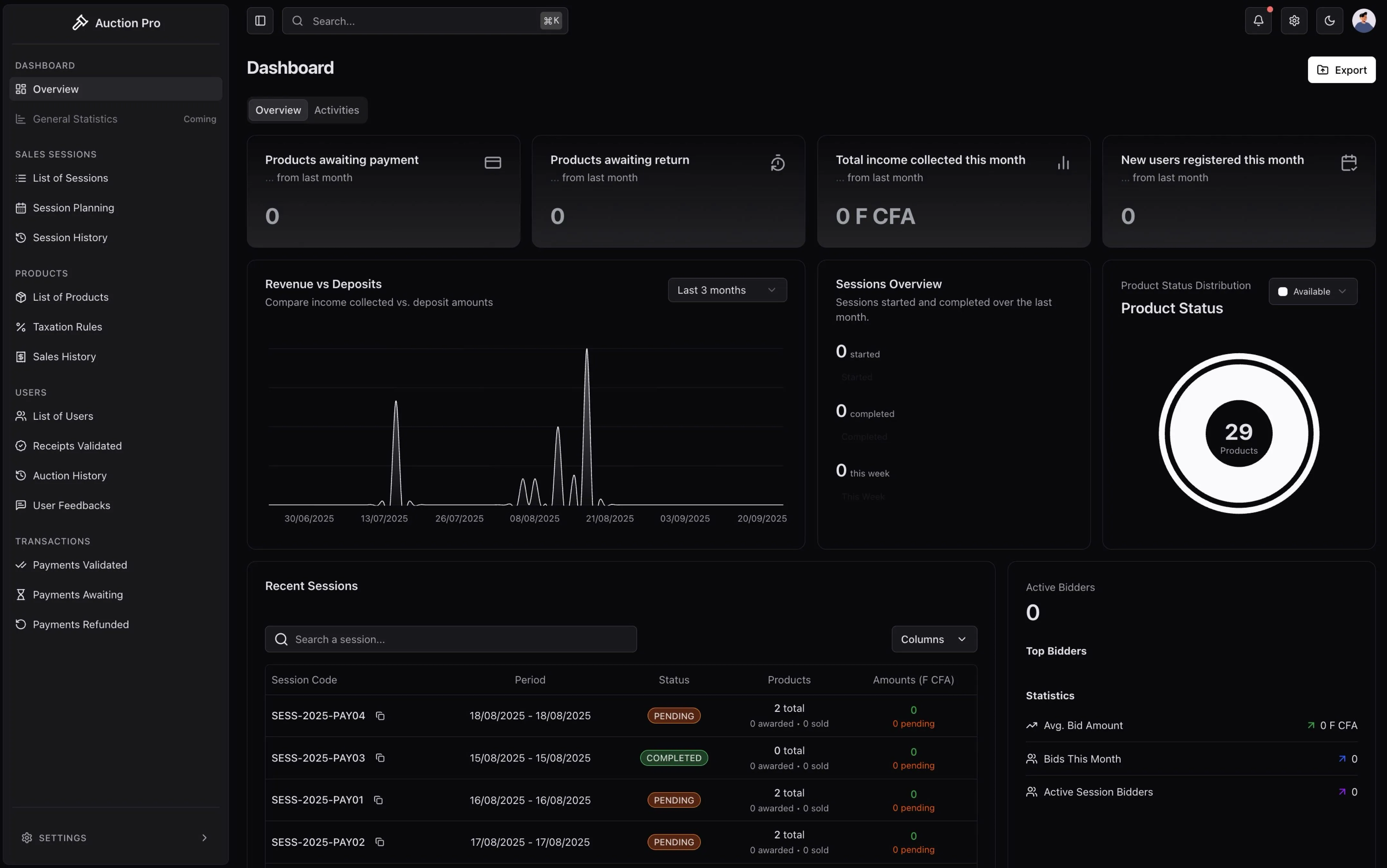
Screenshot: Cashier dashboard showing payment queue, pending validations, and financial summary
📊 Main Dashboard Elements:
- Payment Queue: Prioritized list of pending payment validations
- Daily Summary: Total processed payments and transaction volume
- Active Alerts: Urgent payment issues requiring immediate attention
- Transaction History: Recent payment activities and confirmations
- Performance Metrics: Personal productivity and processing statistics
🔄 Real-time Updates:
- Live payment notifications
- Instant queue updates
- Automatic alert refreshing
- Status change notifications
📈 Daily Performance Tracking:
- Payments Processed: Number of validated transactions
- Total Volume: Monetary value of processed payments
- Average Processing Time: Efficiency metrics
- Success Rate: Percentage of successful validations
- Pending Items: Current workload status
📊 Weekly/Monthly Trends:
- Historical performance comparison
- Workload distribution analysis
- Error rate tracking
- Customer satisfaction scores
⚡ One-Click Operations:
- 🧾 Generate Receipt: Create new payment receipts
- ✅ Validate Payment: Confirm pending transactions
- 💸 Process Refund: Initiate refund procedures
- 📋 View Queue: Access prioritized payment list
- 📊 Daily Report: Generate daily summary
- ⚙️ Settings: Personal preferences and alerts
Navigation & Interface
Main Navigation Sections:
- 💳 Payments: Deposit and acquisition payment management
- 🧾 Receipts: Receipt generation and validation
- 💸 Refunds: Refund processing and tracking
- 📊 Reports: Financial reports and transaction summaries
- ⚙️ Settings: Personal preferences and notification settings
🧾 Receipt Management
Understanding Receipt Types
🔹 Security Deposit Receipts
Purpose & Requirements:
- Confirm 500,000 FCFA security deposit payment
- Enable user participation in auction sessions
- Serve as collateral for bidding authorization
- Track deposit status throughout auction lifecycle
Receipt Details:
- Format: Unique code
DEP-YYYY-XXXXXX - Validity: Active until session completion or refund
- Information: Amount, payment method, timestamp, user details
- Security: Encrypted QR code and verification hash
Verification Requirements:
- ✅ Exact amount (500,000 FCFA)
- ✅ Valid payment method confirmation
- ✅ User identity verification
- ✅ Session eligibility check
🔹 Final Payment Receipts
Purpose & Requirements:
- Confirm final payment for won auction items
- Authorize product pickup and delivery
- Serve as proof of ownership transfer
- Complete the auction transaction cycle
Receipt Details:
- Format: Product-specific
ACQ-PRD-XXX-YYYY - Validity: Permanent record for audit and pickup
- Information: Final amount, taxes, fees, product details
- Documentation: Complete transaction history
Processing Requirements:
- ✅ Winning bid confirmation
- ✅ Tax and fee calculations
- ✅ Payment method verification
- ✅ Delivery/pickup arrangements
🔄 Complete Receipt Process
Standard Workflow:
- Payment Notification → System alerts cashier of new payment
- Verification → Cashier validates payment details and amount
- Receipt Generation → System creates unique receipt with QR code
- User Notification → Automatic email with receipt and instructions
- Status Update → User account updated with payment confirmation
- Audit Log → Complete transaction recorded for compliance
Quality Assurance:
- Double-verification for large amounts
- Supervisor approval for unusual transactions
- Automatic fraud detection alerts
- Regular audit trail reviews
Generating Deposit Receipts
1. Receive Payment Notification
Screenshot: Receipt generation interface with amount field and payment method selection
When a user pays their deposit:
- System generates automatic payment notification
- Payment details appear in cashier queue
- User information and session details provided
- Priority assigned based on session timing
3. Generate and Validate Receipt
Receipt Creation Process:
- Click "Generate Receipt" in the payment verification interface
- Review auto-populated details for accuracy
- Add any necessary notes or special instructions
- Generate unique receipt code with QR verification
- Send confirmation to user via email and SMS
Quality Control:
- Double-check all amounts and details
- Verify receipt code uniqueness
- Test QR code functionality
- Confirm user receives notification
-
Access Receipt Generation
- Navigate to Receipts → Generate New Receipt
-
Receipt Information
Receipt Type: Deposit Receipt Amount: 500,000 FCFA (fixed amount) Payment Method: [Cash, Bank Transfer, Card] User: [Select from dropdown or search] Session: [Select target auction session] -
Verification Requirements
- Payment Proof: Verify actual payment received
- Amount Match: Confirm exact 500,000 FCFA amount
- Payment Method: Record actual payment method used
- User Identity: Verify user identity matches payment
-
Receipt Generation
- System generates unique receipt code
- Receipt printed or displayed for user
- User authorized for session participation
- Payment recorded in system
[Screenshot Note: Generated receipt showing code, amount, and user details]
Validating User Receipts
When users present receipts for validation:
-
Receipt Verification Process
- Scan/Enter Receipt Code: Input the unique receipt identifier
- System Lookup: Automatic verification against database
- Status Check: Confirm receipt is valid and not already used
- User Match: Verify receipt belongs to presenting user
-
Validation Actions
✅ Valid Receipt: Mark as validated, authorize user
❌ Invalid Receipt: Reject and request new payment
⚠️ Duplicate Receipt: Flag for fraud investigation
🔄 Already Used: Inform user of previous validation
[Screenshot Note: Receipt validation interface with code scanner and validation results]
Payment Processing
Security Deposit Validation
Payment Verification Workflow
-
Receive Payment Notification
- System alerts when user submits deposit payment
- Payment appears in cashier queue for validation
- User status shows "Pending Validation"
-
Verify Payment Details
Payment Amount: Confirm exactly 500,000 FCFA Payment Method: Cash, transfer, or card payment Payment Proof: Receipt, transfer slip, or transaction ID User Identity: Verify user matches payment information -
Validation Decision
- ✅ Approve: User authorized to participate in bidding
- ❌ Reject: Payment insufficient or invalid, require correction
- ⏸️ Hold: Additional verification needed, temporarily pause
[Screenshot Note: Payment validation interface with approval/rejection buttons]
Common Validation Scenarios
✅ Standard Approval
- Exact amount received (500,000 FCFA)
- Valid payment method confirmation
- User identity verified
- Payment proof provided
⚠️ Requires Attention
- Amount discrepancy (over/under payment)
- Missing payment documentation
- Suspicious payment patterns
- Technical payment processing errors
❌ Rejection Reasons
- Insufficient payment amount
- Invalid payment method
- Unverified user identity
- Suspected fraudulent activity
Acquisition Payment Processing
Final Payment Calculation
When users win auction items, the system automatically calculates:
[Screenshot Note: Payment calculation breakdown showing all components]
Example Payment Breakdown:
━━━━━━━━━━━━━━━━━━━━━━━━━━
Product Final Bid: 2,000,000 FCFA
Taxes (10%): 200,000 FCFA
━━━━━━━━━━━━━━━━━━━━━━━━━━
Subtotal: 2,200,000 FCFA
Less Deposit Applied: -500,000 FCFA
━━━━━━━━━━━━━━━━━━━━━━━━━━
BALANCE DUE: 1,700,000 FCFA
Payment Processing Steps
-
Payment Notification
- User receives payment request with breakdown
- Payment deadline clearly communicated
- Multiple payment options available
-
Payment Submission
- User submits payment via Stripe integration
- System processes payment and generates confirmation
- Cashier receives validation request
-
Cashier Verification
Verify Payment Amount: Matches calculated balance
Confirm Payment Method: Successful processing
Check Payment Status: Completed transaction
Generate Final Receipt: With unique pickup code
[Screenshot Note: Acquisition payment processing interface with payment verification steps]
Refund Management
Types of Refunds
🔄 Automatic Refunds
- Non-Participating Users: Users who paid deposit but didn't bid
- Session Cancellations: Full refunds for cancelled sessions
- System Errors: Technical issues preventing participation
📝 Manual Refunds
- Overpayments: Excess amounts beyond calculated totals
- Dispute Resolutions: Administrator-approved refund requests
- Special Circumstances: Case-by-case refund approvals
Refund Processing Workflow
-
Refund Initiation
- System generates refund request automatically
- Administrator approves manual refund requests
- Cashier receives refund processing notification
-
Refund Verification
Original Payment: Verify initial payment amount and method Refund Amount: Confirm correct refund calculation User Identity: Ensure refund goes to correct user Refund Method: Same method as original payment when possible -
Processing & Documentation
- Execute refund through payment processor
- Generate refund receipt for user
- Update system with refund completion
- Maintain audit trail for all refund activities
[Screenshot Note: Refund processing interface with verification steps and approval workflow]
Refund Tracking & Status
Refund Statuses
- 🟡 Pending: Refund approved, awaiting processing
- 🔵 Processing: Refund submitted to payment processor
- 🟢 Completed: Refund successfully processed and delivered
- 🔴 Failed: Refund processing failed, requires attention
- ⚫ Cancelled: Refund request cancelled or withdrawn
User Communication
- Status Updates: Automatic notifications at each refund stage
- Timeline Estimates: Expected completion times communicated
- Issue Resolution: Direct contact for refund problems
Financial Reporting
Daily Transaction Summary
[Screenshot Note: Daily financial summary showing all transaction types and totals]
Generate and review daily financial reports:
Report Components
Daily Summary Report
━━━━━━━━━━━━━━━━━━━━━━━━━━━━━━━━━━━━━━━━
Deposits Processed: 25 × 500,000 = 12,500,000 FCFA
Acquisitions Processed: 18 payments totaling 8,750,000 FCFA
Refunds Issued: 3 × various amounts = 950,000 FCFA
━━━━━━━━━━━━━━━━━━━━━━━━━━━━━━━━━━━━━━━━
Net Daily Processing: 20,300,000 FCFA
Key Metrics
- Processing Volume: Total number of transactions
- Success Rate: Percentage of successful validations
- Average Processing Time: Time from submission to validation
- Exception Rate: Transactions requiring special attention
Weekly & Monthly Reports
Generate comprehensive periodic reports:
- Revenue Analysis: Total revenue by session and time period
- Payment Method Breakdown: Analysis of preferred payment types
- Refund Analysis: Refund rates and patterns
- Performance Metrics: Cashier productivity and accuracy rates
[Screenshot Note: Monthly financial report with charts and trend analysis]
Exception Handling
Common Payment Issues
Amount Discrepancies
When payment amounts don't match requirements:
-
Underpayment Scenario
- Contact user immediately for additional payment
- Provide clear calculation breakdown
- Set deadline for payment completion
- Suspend bidding authorization if needed
-
Overpayment Scenario
- Process automatic refund for excess amount
- Generate refund receipt for user
- Update payment records with correct amounts
- Notify user of refund processing
Technical Payment Failures
When payment processing encounters technical issues:
-
Immediate Actions
- Document error details and screenshots
- Check payment processor status
- Notify user of temporary delay
- Escalate to administrator if needed
-
Resolution Process
- Retry payment processing if possible
- Manual verification for successful payments
- Alternative payment arrangements if needed
- Complete audit trail documentation
[Screenshot Note: Exception handling interface with error logging and resolution options]
Fraud Prevention
Red Flags to Watch
- Duplicate Payments: Multiple payments from same source
- Suspicious Amounts: Payments not matching system requirements
- Rapid Transactions: Unusually fast payment submissions
- Inconsistent Information: Payment details not matching user profile
Investigation Process
- Immediate Hold: Suspend suspicious transactions
- Documentation: Record all suspicious activity details
- Administrator Alert: Notify administrator of potential fraud
- Investigation: Collaborate with administrator on resolution
- Resolution: Approve, reject, or escalate based on findings
Cashier Settings & Preferences
Personal Configuration
[Screenshot Note: Cashier preferences interface with notification and display settings]
Notification Preferences
Payment Alerts: ✅ Enabled
Refund Notifications: ✅ Enabled
Exception Alerts: ✅ Enabled
Daily Summary: ✅ Email at end of day
System Maintenance: ✅ Advance notice
Display Settings
- Transaction View: List or grid format preference
- Auto-Refresh: Automatic queue updates frequency
- Default Filters: Preferred transaction status filters
- Print Settings: Receipt printer and format preferences
Security Settings
Access Controls
- Session Timeout: Automatic logout after inactivity
- Password Management: Regular password update requirements
- Two-Factor Authentication: Additional security layer
- IP Restrictions: Limit access to approved locations
Best Practices
Daily Workflow
Start of Day
- System Check: Verify system connectivity and printer status
- Queue Review: Check overnight payment submissions
- Priority Items: Address urgent validations first
- Communication: Coordinate with administrators on special items
During Operations
- Regular Monitoring: Check payment queue every 15-30 minutes
- Prompt Processing: Validate payments within target timeframes
- Documentation: Maintain clear records of all activities
- Communication: Keep administrators informed of issues
End of Day
- Final Processing: Complete all pending validations
- Daily Summary: Generate and review daily report
- System Cleanup: Ensure all transactions properly recorded
- Next Day Preparation: Note any pending items for follow-up
Quality Assurance
Accuracy Measures
- Double-Check Amounts: Always verify payment amounts twice
- User Verification: Confirm user identity for all transactions
- Documentation: Maintain detailed records of all decisions
- Cross-Reference: Verify system calculations independently
Professional Standards
- Timely Processing: Meet established processing time targets
- Clear Communication: Provide clear explanations to users
- Confidentiality: Maintain strict confidentiality of financial data
- Continuous Learning: Stay updated on system features and procedures
💡 Pro Tips for Cashiers
- Batch Processing: Group similar transactions for efficiency
- Keyboard Shortcuts: Learn system shortcuts for faster processing
- Regular Breaks: Take breaks to maintain accuracy and focus
- Error Prevention: Use checklists for complex transactions
- User Service: Provide excellent customer service throughout interactions
Next: Learn User participation guide →
💬 Help Us Improve
Your feedback helps us create better documentation for everyone. Please let us know if this page was helpful or if you have suggestions for improvement.
How is this guide?