
Administrator Guide
Complete guide for system administrators managing auction sessions, users, and financial operations
This comprehensive guide provides step-by-step instructions for administrators to effectively manage the Auction Pro system. As an administrator, you have complete control over sessions, users, products, and financial operations.
🚀 Getting Started
First Login & Dashboard Overview
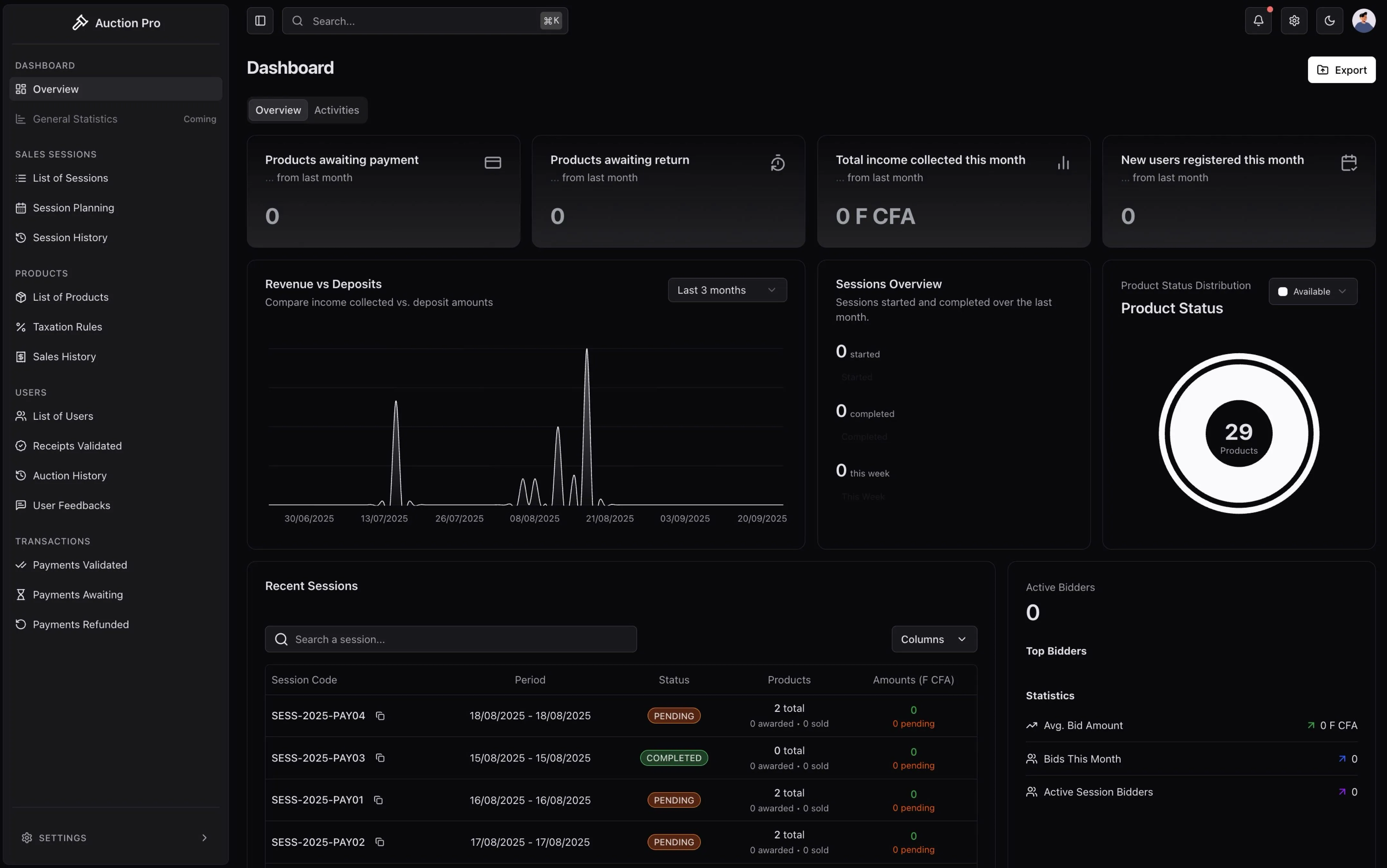
Screenshot: Admin dashboard overview showing key metrics, active sessions, and quick action buttons
After logging in with your administrator credentials, you'll access the main dashboard providing:
📊 Real-time Metrics:
- Active auction sessions and participant counts
- Daily/weekly/monthly revenue tracking
- User registration and activity statistics
- Payment success rates and pending transactions
🚨 Alerts & Notifications:
- Sessions requiring attention
- Payment issues or disputes
- System maintenance notifications
- User account issues
One-Click Actions:
- ➕ Create new auction session
- 👤 Add new user account
- 📦 Add products to catalog
- 💰 Process manual payments
- 📧 Send system-wide notifications
- 🔧 Access system settings
🏛️ Session Management
Creating a New Auction Session
1. Initiate Session Creation
Navigate to Sessions → Click "Create New Session" button
Screenshot: Session creation form with all fields and options
2. Configure Basic Information
Required Fields:
Session Name: [e.g., "Monthly Electronics Auction"]
Date: [Select from calendar widget]
Start Time: [e.g., 14:00 WAT]
Duration: [e.g., 3 hours]
Optional Configuration:
- Description: Detailed information for participants
- Category Tags: Help users find relevant sessions
- Cover Image: Eye-catching session thumbnail
4. Add Products to Session
Product Selection Methods:
- Browse existing product catalog
- Filter by category, price range, availability
- Select multiple products with checkboxes
- Set individual starting bids and reserve prices
- Add new product directly to session
- Upload images and description
- Set pricing and bidding parameters
- Immediate availability for session
- Import products via CSV file
- Template available for download
- Automatic validation and error checking
- Preview before final import
5. Review and Publish
Pre-launch Checklist:
- ✅ Session details are accurate
- ✅ Products have appropriate starting prices
- ✅ Registration deadline is appropriate
- ✅ Payment processing is configured
- ✅ Notification settings are enabled
Publication Options:
- Save as Draft: Continue editing later
- Schedule: Publish at specific date/time
- Publish Now: Make immediately available
Adding Products to Sessions
-
From Session Detail Page → Click "Add Products"
-
Product Information
Product Name: [Clear, descriptive name] Category: [Electronics, Furniture, Art, etc.] Starting Price: [Minimum bid amount in FCFA] Description: [Detailed product description] Condition: [New, Used, Refurbished] -
Product Images
- Upload Multiple Images: Support for up to 10 images per product
- Image Requirements: JPG/PNG, maximum 5MB each
- Image Order: Drag and drop to arrange display order
[Screenshot Note: Product creation interface showing image upload and form fields]
- Advanced Settings
Reserve Price: [Optional minimum selling price]
Bid Increment: [Minimum bid increase amount]
Auto-Extend: [Extend time if bid in last minutes]
Special Notes: [Any important conditions]
Setting Taxation Rules
Before starting a session, configure taxation rules:
-
Session Settings → Taxation
-
Tax Configuration
Base Tax Rate: [e.g., 10%]
Additional Fees: [Processing, handling fees]
Tax Calculation: [Applied to final bid amount]
Display Method: [Include in bid or add separately]
[Screenshot Note: Tax configuration interface with percentage sliders and preview]
Session Control & Monitoring
Starting a Session
-
Verify Prerequisites:
- ✅ All products added and configured
- ✅ Taxation rules set
- ✅ Minimum participants registered
- ✅ Payment processing ready
-
Launch Session: Click "Start Session" → Confirm launch
Real-time Monitoring
During active sessions, monitor:
- Live Bidding Activity: Real-time bid updates and participant activity
- Session Progress: Time remaining and completion percentage
- Technical Status: System performance and connection stability
- Participant Status: Active users and their bidding activity
[Screenshot Note: Real-time session monitoring dashboard with live updates]
Session Controls
- Pause Session: Temporarily stop bidding (emergency use)
- Extend Session: Add additional time if needed
- End Session: Manually close session early
- Cancel Session: Emergency cancellation with automatic refunds
Product Management
Product Catalog Overview
The product management section allows you to:
[Screenshot Note: Product catalog interface showing product grid with status indicators]
- View All Products: Complete inventory across all sessions
- Filter Products: By category, status, session, or price range
- Bulk Operations: Edit, move, or delete multiple products
- Product Analytics: Performance metrics and bidding history
Product Categories
Organize products using the category system:
Default Categories
- Electronics: Computers, phones, audio/video equipment
- Furniture: Office, home, and commercial furniture
- Art & Collectibles: Paintings, sculptures, rare items
- Vehicles: Cars, motorcycles, boats
- Real Estate: Properties, land, commercial spaces
- Industrial: Machinery, equipment, tools
- Other: Miscellaneous items not fitting above categories
Custom Categories
Create custom categories for specific auction types:
- Settings → Product Categories
- Add New Category: Name, description, and display settings
- Category Hierarchy: Create subcategories for better organization
Advanced Product Features
Product Bundles
Group related items to sell together:
- Create Bundle: Select multiple products
- Bundle Settings: Combined starting price and description
- Bidding Rules: Single bid for entire bundle
Reserve Prices
Set minimum acceptable selling prices:
- Hidden Reserve: Not visible to bidders
- Public Reserve: Displayed to encourage bidding
- Reserve Met Indicator: Shows when reserve is reached
User Management
User Account Overview
[Screenshot Note: User management interface showing user list with status indicators and action buttons]
Manage all system users from the centralized user management panel:
- User List: All registered users with status indicators
- Search & Filter: Find users by name, email, status, or role
- Bulk Actions: Apply changes to multiple users simultaneously
- User Analytics: Registration trends and activity patterns
Creating User Accounts
-
Add New User → Manual Creation
-
Required Information
Full Name: [User's complete name] Email Address: [Primary contact email] Phone Number: [Contact number] Role: [Administrator, Cashier, User] Initial Status: [Active, Pending, Suspended] -
Optional Settings
Department: [For organizational users]
Notes: [Internal notes about user]
Notification Preferences: [Email, SMS, In-app]
Account Limits: [Bidding limits, if applicable]
[Screenshot Note: User creation form with all fields and role selection]
User Status Management
Status Types
- 🟢 Active: Full system access and participation
- 🟡 Pending: Account created, awaiting verification
- 🔴 Suspended: Temporarily blocked from participation
- ⚫ Banned: Permanently blocked from system
- 🔵 Limited: Restricted access or functionality
Status Change Process
- Select User from user list
- Choose Action: Suspend, Ban, Activate, or Limit
- Provide Reason: Required for audit trail
- Set Duration: For temporary suspensions
- Notify User: Automatic notification of status change
[Screenshot Note: User status change dialog with reason field and options]
Permission Management
Role-Based Permissions
- Global Roles: Administrator, Cashier, User
- Custom Permissions: Granular control over specific features
- Temporary Permissions: Time-limited access grants
- Permission Inheritance: Roles inherit base permissions
Advanced Permission Features
- Session-Specific Permissions: Access to particular auction sessions
- Financial Limits: Maximum bid amounts or transaction values
- IP Restrictions: Limit access to specific IP ranges
- Time-Based Access: Restrict access to specific hours/days
Financial Management
Payment Overview Dashboard
[Screenshot Note: Financial dashboard showing payment statistics, pending validations, and revenue charts]
Monitor all financial activities through the comprehensive payment dashboard:
- Payment Statistics: Total deposits, acquisitions, and refunds
- Pending Validations: Payments awaiting cashier confirmation
- Revenue Tracking: Session-based and overall revenue analytics
- Payment Methods: Breakdown by payment type and processor
Deposit Management
Security Deposit Monitoring
Track the mandatory 500,000 FCFA deposits:
-
Deposit Status Tracking
- Pending: Payment submitted, awaiting validation
- Validated: Confirmed by cashier, user can bid
- Used: Applied to final purchase amount
- Refunded: Returned to user after session
-
Validation Workflow
- Cashier receives deposit notification
- Payment verification and receipt generation
- System authorization for bidding participation
- Automatic application to final purchase calculations
[Screenshot Note: Deposit tracking interface with status indicators and validation buttons]
Acquisition Payment Processing
Final Payment Calculation
For users who win auction items:
Example Calculation:
Product Final Bid: 2,000,000 FCFA
Taxes (10%): 200,000 FCFA
Total Amount: 2,200,000 FCFA
Less Deposit: -500,000 FCFA
Balance Due: 1,700,000 FCFA
Payment Processing Workflow
- Automatic Calculation: System computes final amounts
- Payment Request: User receives payment notification
- Stripe Processing: Secure payment via integrated gateway
- Verification: Cashier validates payment completion
- Receipt Generation: Official receipt with pickup code
Refund Management
Refund Scenarios
- Non-participating Users: Full deposit refund for users who don't bid
- Session Cancellation: Full refunds for cancelled sessions
- Technical Issues: Refunds for system-related problems
- Overpayments: Automatic refunds for excess payments
Refund Processing
- Refund Request: System or manual initiation
- Administrator Approval: Review and approval process
- Cashier Processing: Execute refund transaction
- User Notification: Confirmation and timeline notification
- Audit Trail: Complete record of refund process
[Screenshot Note: Refund processing interface with approval workflow]
Analytics & Reporting
System Analytics
Performance Metrics
Monitor key system indicators:
- Session Success Rate: Percentage of successful completions
- User Engagement: Active participation and retention rates
- Payment Completion: Success rate of payment processing
- System Uptime: Technical performance and availability
Financial Analytics
Track revenue and financial performance:
- Revenue by Session: Individual session profitability
- Payment Methods: Breakdown of preferred payment types
- Refund Rates: Tracking and analysis of refund patterns
- Tax Collection: Total taxation revenue and rates
[Screenshot Note: Analytics dashboard with charts and key performance indicators]
Custom Reports
Report Types
Generate detailed reports for various purposes:
- Session Reports: Complete session analysis with participant data
- Financial Reports: Revenue, payments, and financial summaries
- User Activity Reports: Participation patterns and user engagement
- Inventory Reports: Product performance and category analysis
Report Export Options
- PDF: Formatted reports for printing and distribution
- Excel: Detailed data for further analysis
- CSV: Raw data for integration with other systems
- Email Distribution: Automatic report delivery to stakeholders
System Configuration
General Settings
[Screenshot Note: System settings interface with configuration options]
System Parameters
- Default Session Duration: Standard auction length
- Payment Deadlines: Time limits for payment completion
- Deposit Amount: Security deposit requirement (default: 500,000 FCFA)
- Notification Settings: System-wide notification preferences
Security Configuration
- Password Policies: Complexity requirements and expiration
- Session Timeouts: Automatic logout after inactivity
- IP Access Controls: Restrict access to specific IP ranges
- Audit Logging: Configure audit trail detail levels
Integration Settings
Payment Gateway Configuration
- Stripe Settings: API keys and webhook configuration
- Payment Methods: Enable/disable specific payment options
- Currency Settings: Base currency and conversion rates
- Transaction Fees: Configure fee structures
Notification Systems
- Email Configuration: SMTP settings and templates
- SMS Integration: Configure SMS gateway for notifications
- Push Notifications: PWA notification settings
- In-app Notifications: Real-time notification preferences
Emergency Procedures
Session Emergencies
Technical Issues
If technical problems occur during a session:
-
Immediate Actions
- Pause the session to prevent unfair bidding
- Notify all participants via system announcements
- Document the issue with screenshots and timestamps
-
Assessment & Resolution
- Evaluate the scope and impact of the technical issue
- Determine if the session can continue or needs termination
- Communicate resolution timeline to participants
-
Session Recovery or Termination
- Recovery: Resume session with appropriate time extensions
- Termination: Cancel session and process full refunds
Emergency Contacts
Maintain updated contact information for:
- System Administrator: Primary technical contact
- IT Support Team: Technical assistance and system recovery
- Legal Counsel: For dispute resolution and legal issues
- Financial Officer: For payment and refund authorization
💡 Pro Tips for Administrators
- Regular Backups: Ensure daily automated backups of all system data
- User Training: Provide regular training sessions for cashiers and users
- Performance Monitoring: Monitor system performance during high-traffic periods
- Documentation: Maintain detailed records of all administrative decisions
- User Communication: Keep users informed of system updates and maintenance
Next: Learn Cashier operations →
💬 Help Us Improve
Your feedback helps us create better documentation for everyone. Please let us know if this page was helpful or if you have suggestions for improvement.
How is this guide?